

Most cold email reporting is a
screenshot of the dashboard pasted into an email on Friday afternoon. That
works until someone asks how this week is doing compared to month or why the
replies went down and no one can answer without spending an hour looking
through data.
The
PostPalMail API shows the numbers, from the dashboard. So, a short
script or any no-code tool that can send web requests can get those numbers on
a schedule. This guide explains which endpoints are important. It also shows
how to take the counts and turn them into the rates that are worth looking at.
It tells what a weekly report should have so that people actually read it.
What a Weekly Report Is For
A good report answers three
questions: are things what changed since last week and what should happen next.
Most reports try to answer a fourth which's how many metrics fit on one page
and they end up answering none of the useful three.
So, keep it short. A handful of
numbers with a sentence of interpretation beats a table of twenty. If you want
a refresher on what each number can and can't tell you, our guide to cold email metrics covers it.
It also helps to decide who
reads the report. One written for yourself can be a few lines. One written for
a client needs plain language and a clear recommendation, because clients care
about results rather than bounce rates.
The Endpoints You'll Use
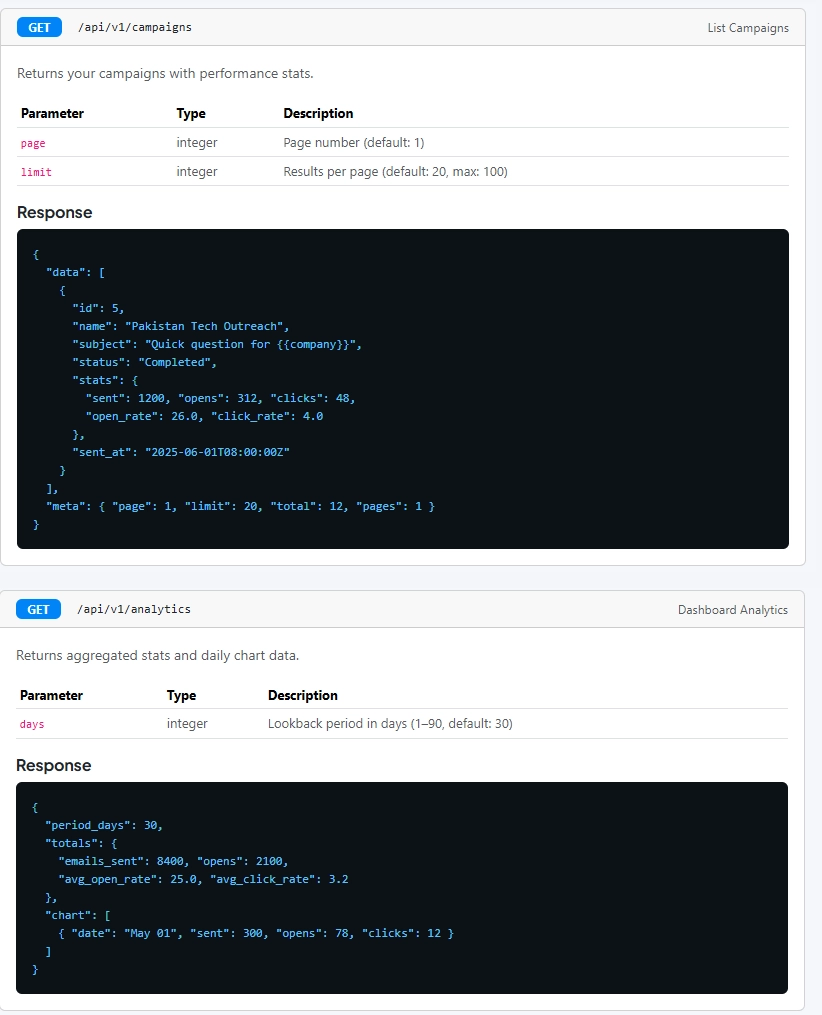
Three endpoints do all of the
work. The campaigns endpoint lists your campaigns. Shows their send stats. It
paginates results using page and limit parameters and the limit can go up to
100. The analytics endpoint returns figures for a period, between 1 and 90 days
and it also gives a daily series that you can chart. The account endpoint
returns your plan, your credit balance, monthly usage and overall totals.
|
curl
"https://postpalmail.com/api/v1/campaigns?limit=20" \ -H "Authorization: Bearer YOUR_API_KEY" curl
"https://postpalmail.com/api/v1/analytics?days=7" \ -H "Authorization: Bearer
YOUR_API_KEY" |
Authentication works the way as
everywhere else in the API. Authentication uses a Bearer key from your API
settings page. Authentication gives each 1,000 requests, per day. A weekly
report needs a handful of calls so the limit will not get in your way. If you
have read the walkthrough of the verification API, you will find this familiar.
Turning Raw Counts into Rates
Each campaign, in the response
has a stats object that lists how many were sent, opened, clicked, bounced
replied to and unsubscribed from. It already shows the open rate and click
rate. The other rates are yours to calculate. Those are the ones that matter
the most.
|
Rate |
How to get it |
Documentation example |
|
Open rate |
Provided (opens divided by
sent) |
68.4% |
|
Click rate |
Provided (clicks divided by
sent) |
18.8% |
|
Reply rate |
Replies divided by sent |
1.8% |
|
Bounce rate |
Bounces divided by sent |
0.6% |
|
Unsubscribe rate |
Unsubscribes divided by
sent |
0.3% |
The final column comes from the example campaign in the
documentation that sent 2,140 emails so it shows the math than an actual
outcome. One point is easy to overlook: in that example the click rate is 402
clicks out of 2,140 emails sent which equals 18.8 percent. Many tools calculate
clicks based on opens so make sure to look at the denominator before you
compare numbers, between different systems.
What Goes in the Report
Resist the urge to include
everything. These six items cover most weeks.
•
Volume: emails sent this week,
next to your monthly usage from the account endpoint.
•
Reply rate, with last week's
figure beside it. This is the headline number.
•
Bounce rate, flagged if it rose.
•
Unsubscribe rate, as a quick check
on targeting.
•
The strongest and weakest campaign
of the week, with one honest guess about why.
•
One decision for next week,
written as a sentence rather than a hope.
Opens are missing from that list on purpose. They're still
worth a line as context. Making them the headline invites, over-reading, which
the metrics guide explains.
Putting It Together
The documented campaigns endpoint accepts page and limit; therefore,
there is no date filter to lean on. The simple approach is to fetch campaigns
and keep the campaigns whose sent at date is, within the week you are reporting
on. After that call analytics with days set to 7 to obtain the totals and the
daily series. Then call the account endpoint to retrieve usage.
From there it's math. Figure out the three rates check them
against the numbers from the week that you have saved and put the results where
your team looks for information whether that’s a row in a spreadsheet, a
message in a chat or an email. Run it every week using whatever scheduler you
already use. In total that's three to five requests each time, below the daily
limit.
Keeping a history
The analytics endpoint can show
data for up to 90 days at once. If you want to compare this quarter to the
quarter you will need to record the numbers from each week yourself. A simple
spreadsheet with one row for each week will do. Put the date the number of
emails sent the reply rate, the bounce rates the unsubscribe rate and a short
note, in that row.
After ten weeks you can see
trends that no single report shows. For example, you may notice a rise, in
bounces that never seemed alarming in any single week. That slow drift is
exactly the kind of problem a screenshot habit miss.
A Sample Report, With Invented Numbers
Here is what the finished
product might look like. Every number below is made up to show the format.
|
Metric |
Last week |
This week |
Note |
|
Emails sent |
420 |
480 |
Volume up about 14% |
|
Reply rate |
1.9% |
2.3% |
Tighter targeting on two
campaigns |
|
Bounce rate |
0.9% |
0.7% |
List cleaned before the
send |
|
Unsubscribe rate |
0.4% |
0.3% |
No change worth acting on |
The decision line for next week
might read: keep the new targeting, and test a softer closing line on the
weakest campaign, using the ideas in our piece on cold email CTAs. That is the whole report. It
takes a minute to read, which is exactly why it gets read.
A Note on Small Numbers
Weekly volumes for freelancers and small teams are not high
and small changes in numbers can make big differences. For example, with 480
emails sent 11 replies give a 2.3 percent reply rate while 12 replies jump to
2.5 percent. That one extra reply moved the number. Nothing in the strategy
changed.
Don’t rush to conclusions based on one week. Instead look at
the trend, over three or four weeks. Let a week’s change be a signal to
investigate, not a final judgment.
When the Numbers Look Wrong
A report is only helpful if it shows something. A growing
bounce rate usually means the list needs checking and making sure addresses are
correct before sending is the thing to try. If replies go down but opens stay
the same the message or the request probably needs improvement. If unsubscribes
go up it shows the targeting is the problem more, than the writing. In every
situation change one thing then look at what weeks report says.
If You'd Rather Skip the API
The dashboard already shows
opens, clicks and bounces. So, none of this is needed for use. The API route
earns its place when you report to clients every week run accounts or want a
history that you control. The features page lists the tracking tools.
Conclusion
Weekly report works best when it stays short. Weekly report
stays comparable, from one week to the next. Ends with a decision. API takes
care of collecting numbers. API leaves me with the part: deciding what to
change.
Want to build your own? Create
your PostPalMail account, read the developer
documentation for the full reference, and see which plan fits your
volume on the pricing page.
Disclaimer
This article is for info only. It talks about the
PostPalMail API as it was documented when this was written. Things like
endpoints, limits and what the responses include might change over time. Always
check the official developer docs for the info. The numbers and examples, in
the report are made up. Taken from sample docs. They’re not performance
benchmarks.