

Before you can send a single campaign, your contacts need somewhere to live. That's exactly what a Lead List is for. Think of it as a labeled folder that holds a specific group of people you plan to email, so you're never just blasting your entire contact base at once. This guide walks you through building your first one, and explains a decision you'll need to make early on that most new users don't expect: whether your list should be Static or Smart. Get this part right, and everything downstream, your campaigns, your sequences, your targeting, gets a lot easier.
Where to Find This Page
Open the Lead Lists page from your sidebar. If this is your time here it will look pretty empty and that’s completely normal. You’ll also see tabs, for lists you’ve favorited and lists that other people have shared with you. These tabs will fill up naturally as you use the platform more.
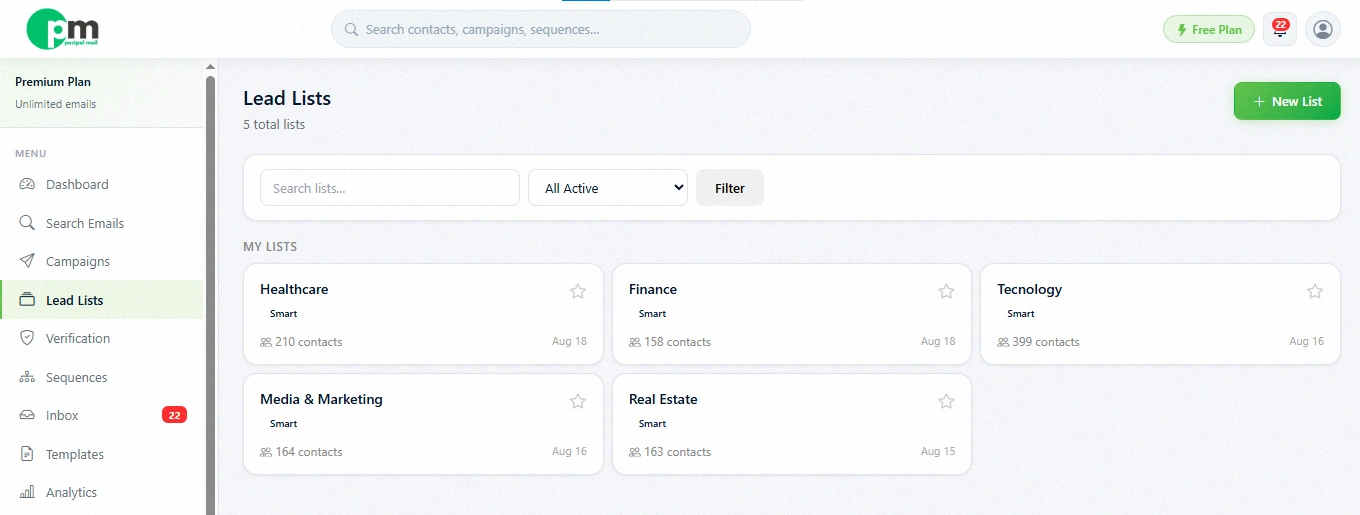
Click on 'Create List' to begin. You’ll be taken to a form where you need to enter a name add an optional description and choose your list type, the one decision that really matters most.
Static vs Smart, The One Real Decision
This is the part worth slowing down for, because it changes how your list behaves over time.
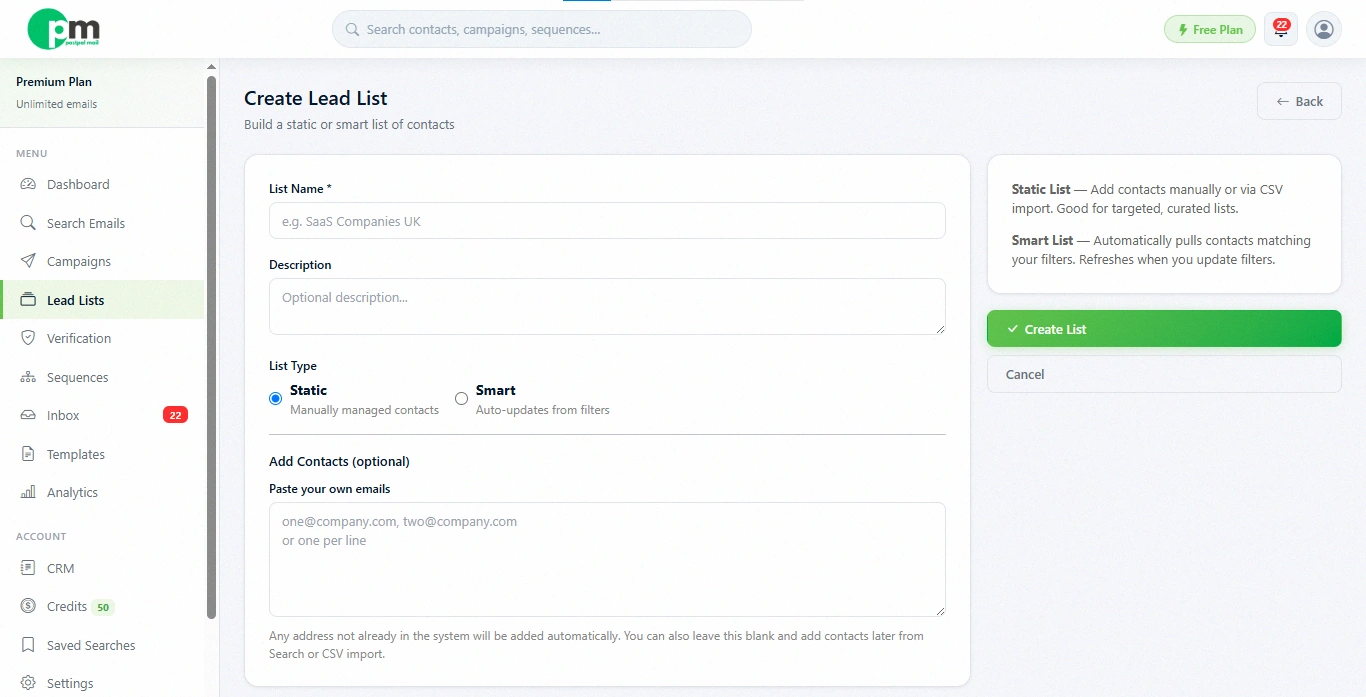
- Static List: a fixed group of contacts. You add people manually. Import them from a CSV file and the list stays exactly as you left it until you change it yourself. Nothing gets added automatically.
- Smart List: a list that fills itself. Of adding contacts one, by one you set filters like a keyword, a country or an industry and the list automatically pulls in every contact that matches, updating on its own as new matching contacts appear in the system.
If you already have a specific set of people in mind, say, a spreadsheet of leads from a trade show, go Static. If you'd rather describe your ideal audience and let the platform keep finding more people who fit, go Smart.
Creating a Static List
Give your list a name. A clear name such as "SaaS Companies UK" is better than a List 1" when you have several lists. You can add a description if you would like a quick reminder later. Then in the "Paste your emails" box paste your addresses either separated by commas or one address per line. If you have a list, in a spreadsheet you can skip typing and import it as a CSV file after you create the list.
Creating a Smart List
Switch the List Type to Smart, and a new section appears asking for your filters.
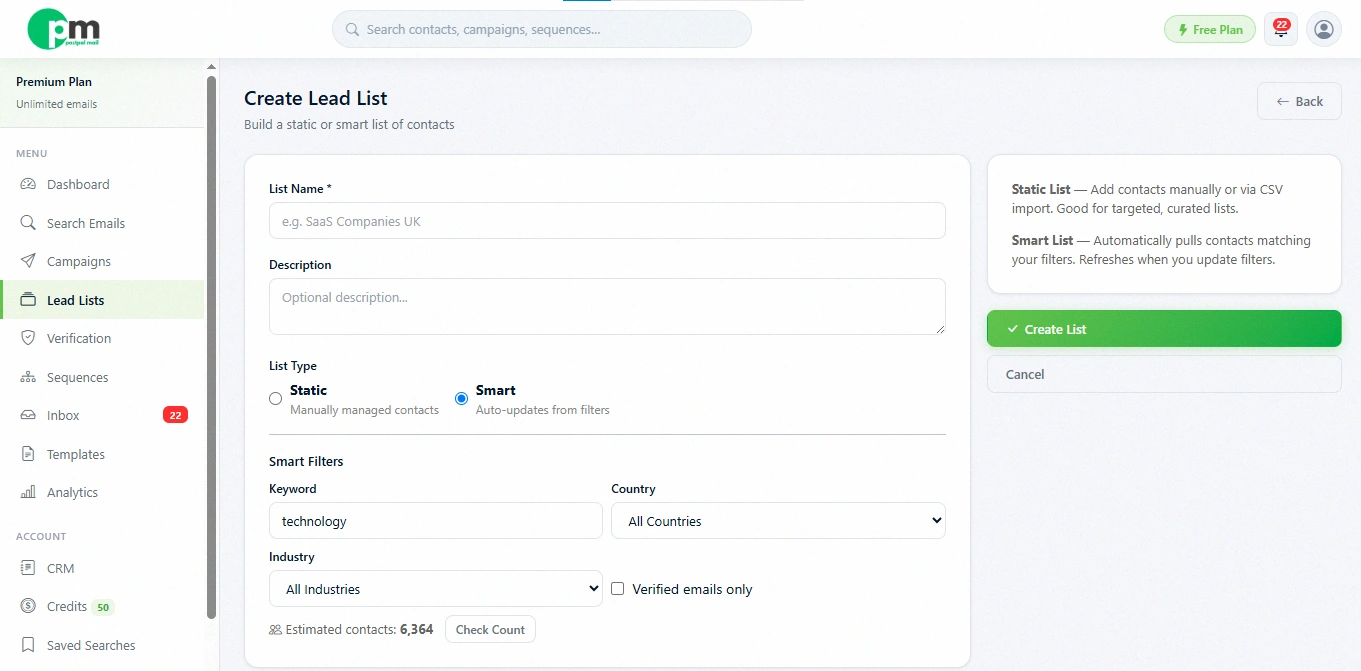
- Keyword: a word tied to the kind of business you're after, like 'software' or 'restaurant'
- Country: narrows contacts down to a specific location
- Industry: filters by the sector a contact's business falls under
- Verified only: an optional checkbox to only include contacts that have already passed email verification
There is a Estimate" button next to the filters, which is worth clicking before you save. The "Estimate" button shows you a count of how many contacts currently match your filters so you do not create an empty list, by accident or a list that is so broad it becomes unmanageable.
Why This Matters More Than It Seems
A lot of new users skip past the list type without much thought, then wonder later why one campaign only reached the same 40 people while another kept finding fresh contacts every week. That difference usually happens because the list was Static or Smart. Neither one is better they are just made for situations but choosing the wrong one, for your goal is the most common early mistake and it is an easy one to avoid once you understand what each option actually does.
Managing Your List After It's Created
Once your list exists, it's not set in stone. A few things you can do with it later, all from the Lead Lists page:
- Clone it: Duplicate a list as a starting point for a similar one, without rebuilding it from scratch
- Favourite it: Pin the lists you use most often to the top for quick access
- Archive it: Get an old list out of your main view without deleting it permanently
- Share it: Give a teammate access, to the list so you both work from one source instead of duplicating effort.
- Export it: Download your list as a CSV any time you need it outside PostPalMail
- Remove contacts: Clean out anyone who bounced, unsubscribed or simply does not belong anymore.
A Simple Walkthrough
Here's what building your first list actually looks like, start to finish, using a Smart list as the example.
- Open Lead Lists and click Create List
- Name it something specific, like 'UK Marketing Agencies'
- Switch the List Type to Smart
- Enter 'marketing' as your keyword and 'United Kingdom' as your country
- Click Estimate to see roughly how many contacts match
- Save the list. It's now ready to use in a campaign, and will keep growing on its own as new matching contacts appear
What to Do Next
Once your list is built, it's ready to plug straight into a Campaign. If you haven't found contacts yet and want a Static list, head to the Search page first to gather them. If you skipped the account connection step the previous guide, about connecting Gmail or Outlook will cover the account connection step. It also explains how to connect Gmail or Outlook.
Conclusion
A Lead List is a small step, but it's the foundation everything else in PostPalMail builds on top of. No campaign or sequence can run without one. Whether you go Static for a specific group you already have, or Smart for an audience that keeps growing, the setup takes a couple of minutes. Head to Lead Lists now and build your first one, so it's ready the moment you're set to send.
Disclaimer: This article is for informational purposes only and is meant to help new users create their first Lead List in PostPalMail. Features and screens may change over time so always refer to the Lead Lists page, inside the platform for the latest options.