

Writing the email again and again is one of those little tasks that slowly takes up a big chunk of your week. A template solves this problem. You write your message once save it and then use it over and over for every campaign that fits. Each time it still feels personal, to the person who reads it. This guide explains two methods to bring a template into your account. One way is to choose a template from the collection of -made options. The other way is to create your template from the beginning. It also covers all the details about the personalization tokens that connect everything. After you finish reading you will have a template, in your library waiting to be used with a campaign.
Where to Find This Page
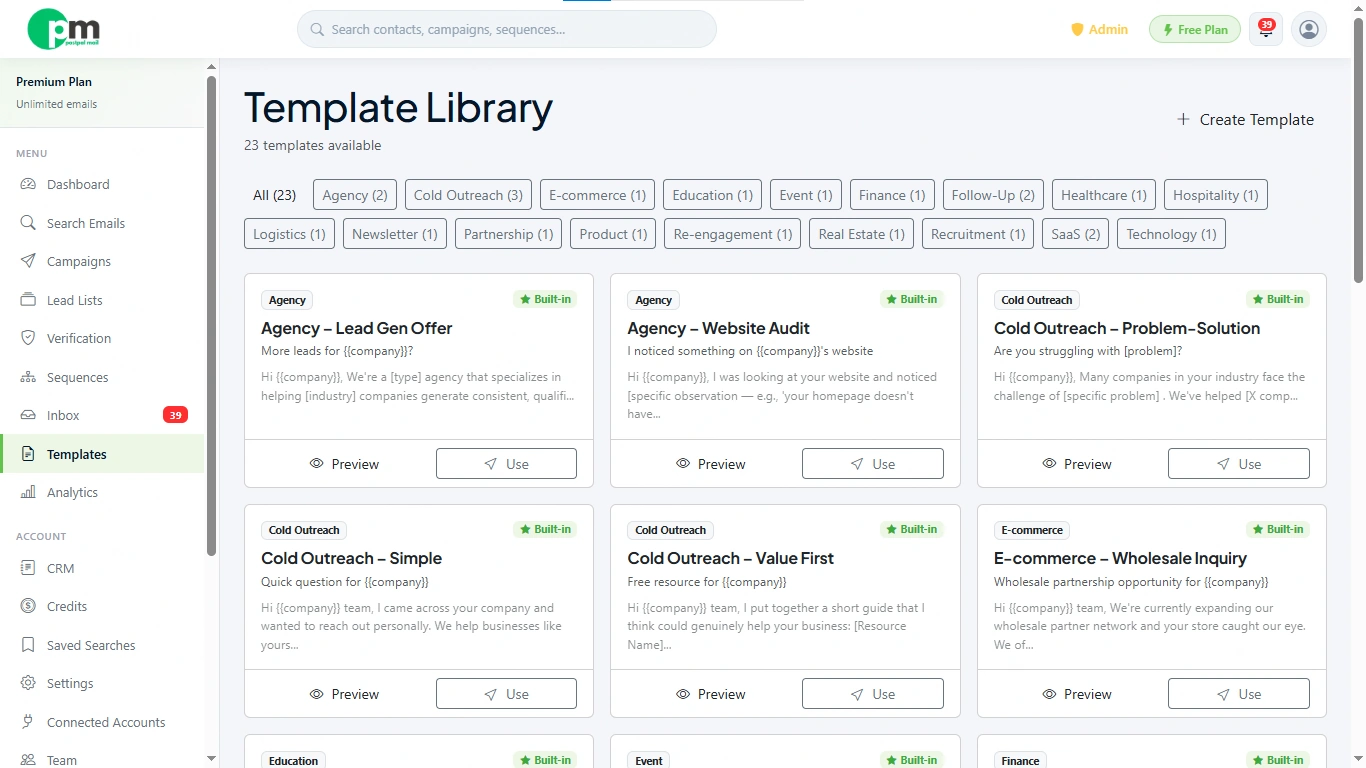
Open the Template Library from your sidebar. Right at the top, you'll see how many templates are currently available, along with a row of category tabs across the top for filtering by type.
The Fastest Way, Use a Ready Made Template
Before you begin writing your text it is an idea to check if a template that fits what you need is already, in the library. The templates are sorted by category so if you go to a category like Cold Outreach or SaaS the list becomes much shorter quickly just a few seconds of looking around can lead you to the right one.
Click 'Preview' on any template that you like and a window will open showing how it looks. If it fits what you need click 'Use This Template' in the preview. That adds it to your account so you can edit it or send it as it is.
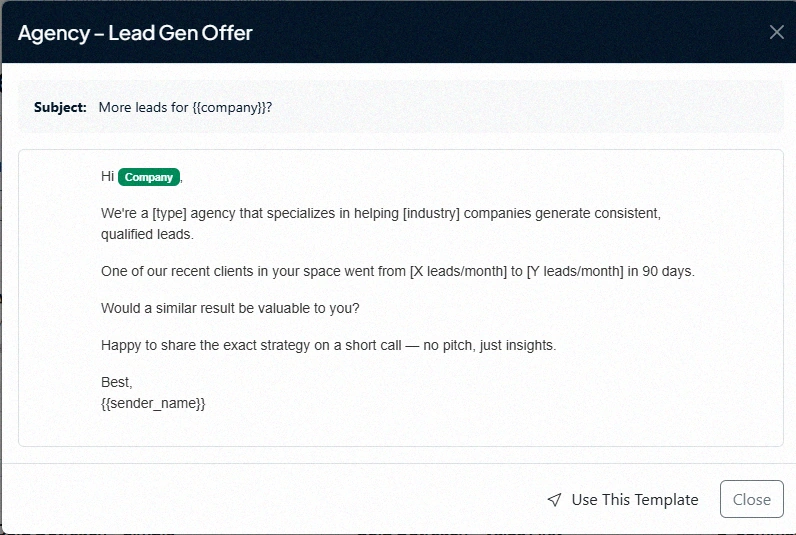
This route saves the time especially if you're not confident writing marketing copy from scratch. You don't have to keep the words exactly as they're. Anything you take from the library can still be changed later to sound like your words.
Writing Your Template from Scratch
If none of the pre-made choices work click on 'Create Template' instead. You will go to a form that has four sections.
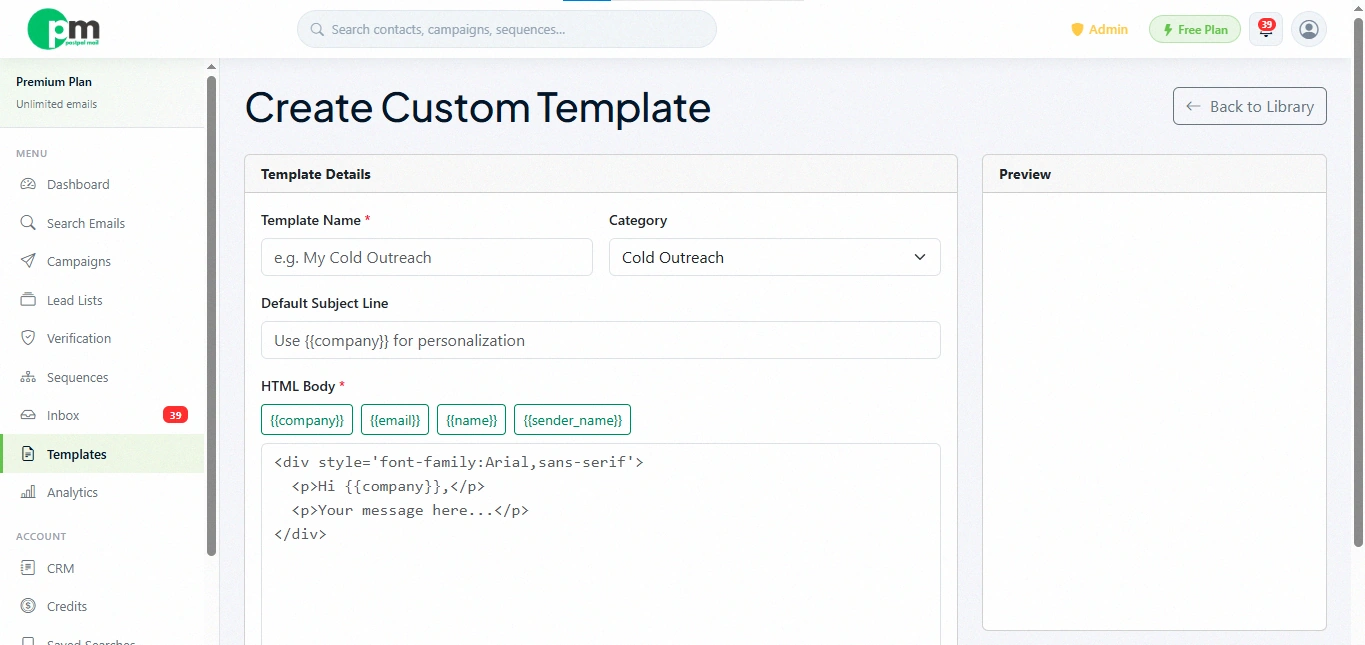
- Template Name: for your own reference so name it something you'll recognize later like "Cold Outreach v2".
- Category: choose from options, like Cold Outreach Follow Up Partnership, SaaS, Agency, E-commerce, Newsletter, Event, Finance, Healthcare, Logistics, Technology or Custom if none of those fit.
- Default Subject Line: the subject your recipient sees first and it accepts the personalization tokens as the body.
- HTML Body: the actual message. You can write plain text or basic HTML here, and there's a small row of clickable tokens above the box to drop in personalization fields without typing them out by hand.
Personalization Tokens Explained
This is the part that makes a template feel written for one person instead of a hundred. Four tokens are available, and PostPalMail automatically swaps each one out with the real value for every contact when your campaign sends.
- {{name}}, replaced with the contact's name
- {{company}}, replaced with the contact's company name
- {{email}}, replaced with the contact's email address
- {{sender_name}}, replaced with your own name, the person sending the email
A line, like "Hi {{company}} I noticed your team has been growing" becomes "Hi Riverside Studio I noticed your team has been growing" the moment it lands in someone’s inbox. It’s a change but it makes all the difference. One version sounds like a copy-pasted message. The other feels personal like it was written for that person. That one little detail can turn an email into something that actually stands out.
A Simple Example
Here's what putting a template together looks like from start to finish, using the from scratch route:
- Click Create Template
- Name it 'Freelance Design Outreach'
- Set the category to Agency
- Write the subject line as 'Quick idea for {{company}}'
- In the body write an friendly message and include name and sender name where they fit naturally
- Save it and it is now sitting in your Template Library ready to attach to any campaign
Why Templates Matter More Than People Expect
It is easy to overlook how much a template shapes the result of a campaign. Two people can send the offer to the same audience yet the reply rates they get can be very different and that difference usually comes back, to the template. A message that reads like a form letter is. Deleted. One that sounds like a person actually wrote it, even with placeholders doing the heavy lifting, tends to get read all the way through. That's really the whole point of spending a few extra minutes getting this right.
A Few Tips Before You Save
- Keep the line short. Long subject lines get cut off on phones and phones are where most people read their email
- Write like a person, not a brochure. Templates that sound tend to get more replies, than templates that sound like an ad
- Don't overload it with tokens. One or two personalization touches feel genuine, five in a row can start to feel mechanical
- Preview before you commit. Use the Preview option to see exactly how your template renders before it goes out to real contacts
What to Do Next
Once your template is saved it's ready to be used with a Lead List inside a Campaign. If you haven't created a list yet our earlier guide, on creating your first Lead List shows you how to do that step.
Conclusion
A good template is the thing that you set up once and then rely on for months. Whether you take a template from the library or create your template, with simple personalization tokens the purpose remains the same. The email that comes from that template feels written for a person yet it is sent to hundreds. Head to the Template Library now and get your first one ready before your next campaign.
Disclaimer: This article is for general informational purposes and is intended to help new users create their first email template in PostPalMail. The categories that are available and the library templates that are offered may change over time always look at the current Template Library, inside the platform for the newest options.