

You have chosen to try PostPalMail that is a decision. Before you can look for a contact or send an email there are two quick tasks to finish: create your PostPalMail account and learn it's dashboard. Both steps are short. This guide will walk you through each one. So, when you log in for the time you will know exactly which buttons to press and which screens to see on it.
Step 1: Creating Your Account
Go to the sign up page to begin. You will find a form that asks for some basic information:
- Full Name: so, the platform (and your recipients, later on) know who you are
- Email Address: this becomes your login, so use one you check regularly
- Password: at least 8 characters
- Confirm Password: just to make sure you typed it correctly
- Referral Code: optional, only fill this in if someone gave you one
If you'd rather skip typing a password altogether, there's also a 'Continue with Google' button right at the top of the page. Clicking it signs you up using your existing Google account in a couple of clicks, and you won't need to remember another password.
Once you fill in your details (or use Google), tick the box agreeing to the terms, and submit the form, your account is created immediately, there's no waiting period or manual approval needed before you can start exploring.
Step 2: Logging In
Next time you want to use PostPalMail, you'll come back through the login page instead of signing up again. It works exactly the way you'd expect enter your email and password, or click 'Continue with Google' if that's how you originally signed up. Either way, you'll land straight on your dashboard.
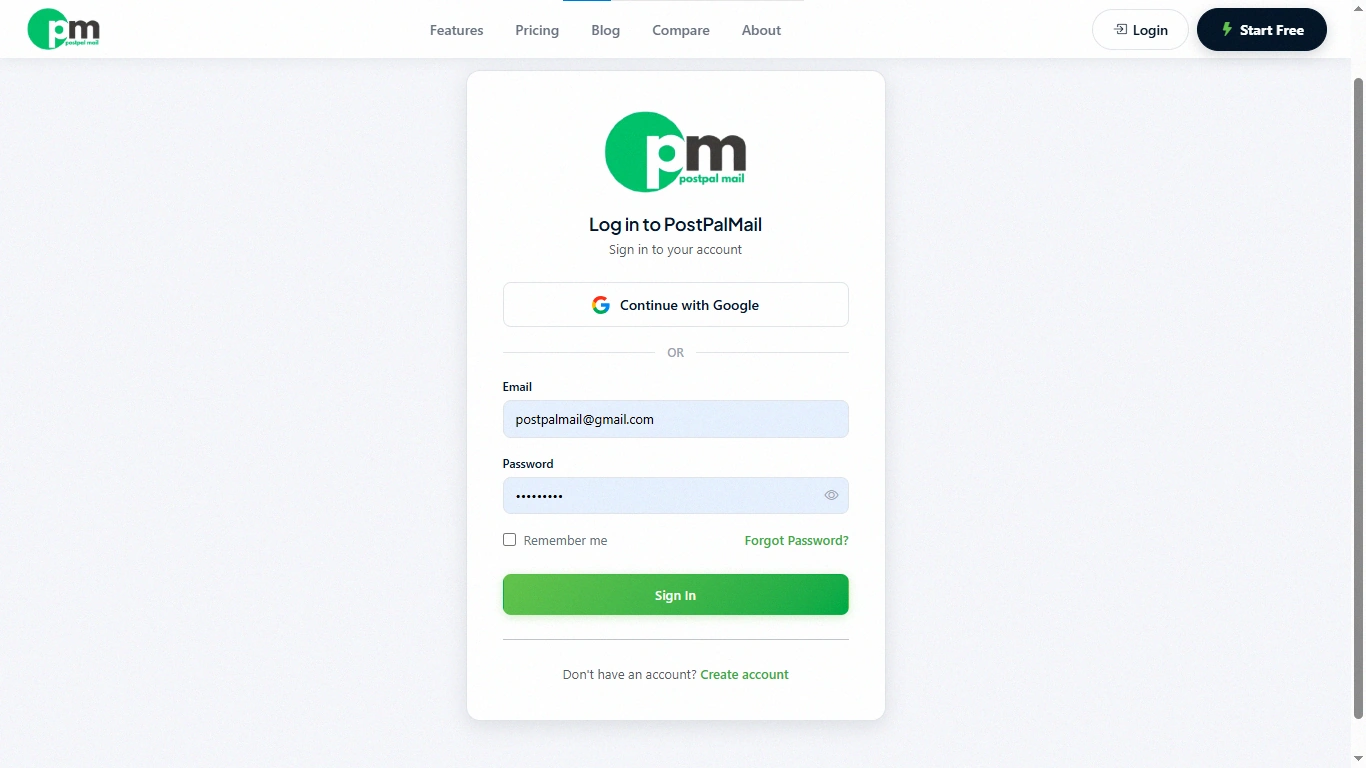
If your account has extra security turned on (two-factor authentication), you'll be asked for a short verification code after your password, just as an extra layer of protection for your account and your contacts.
Is Your Information Safe When You Sign Up?
New users often worry about whether it's safe to hand over an email address and password to a new platform. New users fear that the personal data might be, at risk. Your password is never visible to anyone, including the PostPalMail team, since it's encrypted the moment you create it. And if you choose to sign up with Google instead, you don't create a new password at all. Google handles that part, and PostPalMail simply confirms who you are through your existing Google account.
What You'll See on Your Dashboard
After logging in, you land on your Dashboard, think of it as the home screen of your account. At first, most of it will look empty simply because you haven't done anything yet, but here's what each part means once you start using the platform:
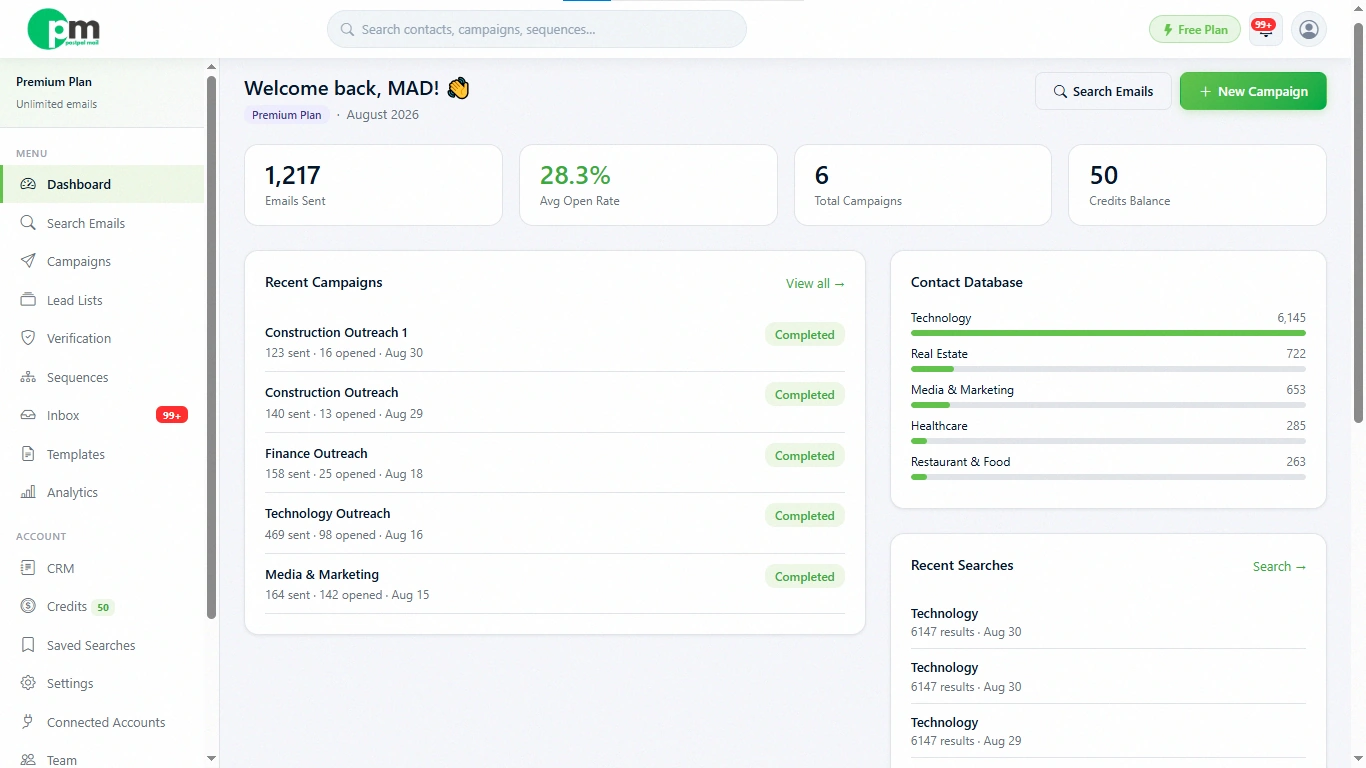
Emails Used This Month / Monthly Limit
This shows how emails you have sent this month compared to the limit, in your plan. It’s a way to see how many more emails you can send before you might need to upgrade.
Total Campaigns
A running count of how many campaigns you've created in total, whether they're still active, paused, or already finished sending.
Total Emails Sent & Total Opens
These two numbers show your activity across all the campaigns you have ever sent as well, as every bulk send you have done from the Inbox. They give you an overall picture of your outreach efforts.
Average Open Rate
Calculated automatically from your total opens against your total emails sent, this percentage tells you, at a glance, how well your emails are performing overall.
Recent Campaigns & Recent Searches
Two short lists showing your last few campaigns and your last few searches, so you can quickly jump back into something you were working on without having to dig through menus to find it.
Top Industries Chart
A small chart showing which industries show up most often across the contacts in the system useful if you're still deciding who to target.
Understanding Your Plan and Free Limit
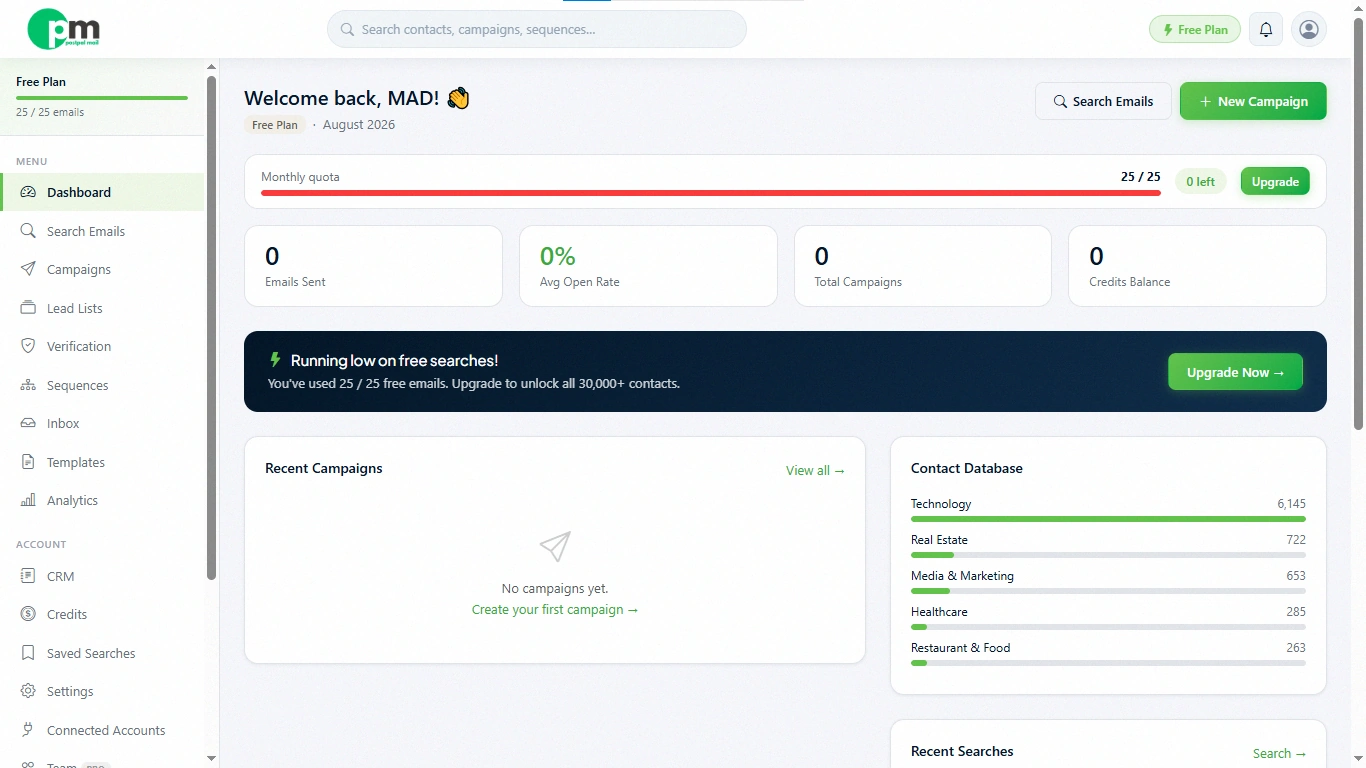
Every account starts on the free plan, which lets you explore PostPalMail without entering any card details. Your monthly email limit is shown right on your dashboard, so you always know where you stand. If you find yourself needing to send more than your plan allows, you can view your options any time on the Pricing page and upgrade only when you actually need to nothing is forced on you before you're ready.
A Simple Walkthrough: Your First Two Minutes
If you want the version here's exactly what happens from the moment you arrive at the signup page until you're all set to begin working:
- You go to the sign-up page and either type, in your name your email and your password or you click Continue with Google
- You agree to the terms and submit the form
- Your account is created instantly and you're taken straight to your dashboard
- You see your monthly email limit, currently sitting at zero used, since your brand new
- Your Recent Campaigns and Recent Searches sections are empty for now, that's completely normal
- From here, your next step is usually to open the Search page and find your first batch of contacts
That's the entire signup process no lengthy onboarding calls, no forms to fax, no waiting for someone to approve your account.
What Should You Do Next?
On your dashboard the next step is to find contacts on the Search page, and add them to your Lead List. On your dashboard you can start building your contacts list. If you have not yet read the overview guide, for PostPalMail it is worth reading. The guide called, What is PostPalMail?, explains how all the pieces fit together. PostPalMail shows how everything works.
Conclusion
Creating a PostPalMail account and understanding your dashboard takes a couple of minutes and there is no technical part. Once you are logged in the real work starts with finding your contacts. If you have not signed up yet, create your free account here and you will soon see your own dashboard faster, then the time it took to read this guide.
Disclaimer: This article is for general informational purposes only and is meant to help new users get started with the PostPalMail platform. Screens, plan limits, and features may change over time always refer to the current signup and pricing pages inside the platform for the latest details.